
This guide explains how to export the implant system database from the dental CAD software. The exported database can be used for backup, system migration, software reinstallation, or sharing with laboratories and technicians.
1. Open the Implant System Database Management Panel
-
Launch the dental CAD software or its system control panel.
-
Navigate to the System / Control Panel.
-
In the left-side menu, locate and click on:
Database Management / Data Manager / Library / Implant System
(The exact name may vary depending on the software version.)
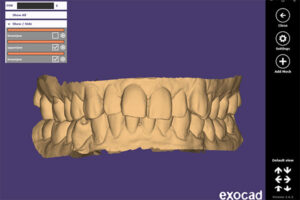
【Image 1: Main software interface and control panel】
2. Locate the Implant System Database
-
In the database management interface, select Implant System from the left-side tree menu.
-
The main window will display all installed implant systems, including different brands and platforms.
【Image 2: Implant system list view】
3. Select Implant Systems to Export
-
Choose the implant system(s) you want to export:
-
Single selection: click one implant system
-
Multiple selection: hold Ctrl or Shift and select multiple systems
-
-
Confirm the selected implant systems are highlighted in the list.
【Image 3: Implant system selected】
4. Export the Implant System Database
-
Click the Export button (usually located at the bottom or right side of the window).
-
A file dialog window will pop up.
-
Choose the destination folder (it is recommended to create a new folder).
-
Click Save to start exporting.
【Image 4: Export button and save dialog】
5. Verify the Exported Files
-
Wait until the export process is completed.
-
Open the selected folder and verify:
- The database file(s) have been created successfully
- The number of exported files matches the selected implant systems
【Image 5: Exported files in folder】
6. Common Uses of the Exported Implant Database
- Backup before software upgrade or reinstallation
- Transfer implant systems to another workstation
- Share implant libraries with partner laboratories
- Technical support and system maintenance
7. Important Notes
-
Do not close the software during the export process.
-
Ensure the implant system includes all components such as:
- Implants
- Abutments
- Screws
- Scan bodies (if applicable)
-
Interface layout may vary by software version, but the workflow remains the same.
8. Support
If you encounter any issues during the export process, please contact technical support or your software provider.