How to Send Digital Cases
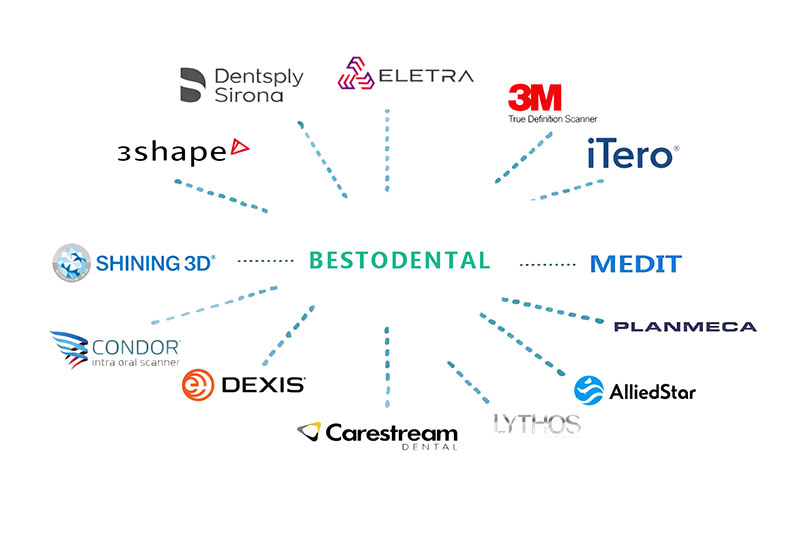
You can send digital cases via Medit, 3Shape TRIOS, iTero, Shining 3D, or Carestream Dental.
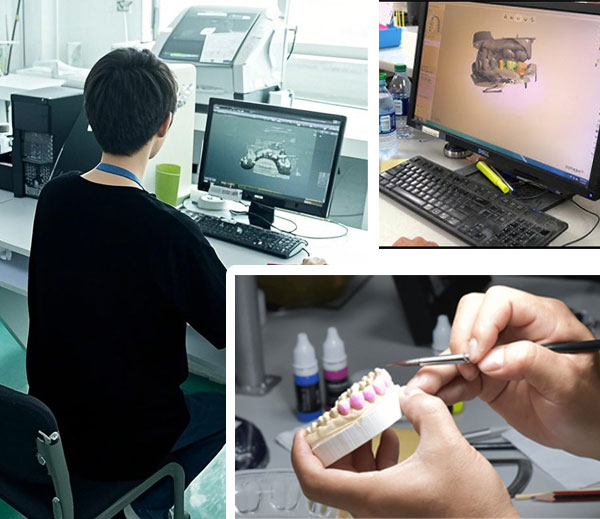
Supported Digital Case Send Platforms
As a full-service dental laboratory, we accept digital cases from dentists worldwide through all major intraoral scanning platforms and file-sharing methods. Please select your preferred platform below and follow the corresponding guide to send your digital case to BestoDental.
- 3Shape TRIOS
- Medit
- iTero
- Shining 3D
- Carestream Dental
- Dentsply Sirona
- Other open STL systems
If your platform is not listed, please call the laboratory so we can help you.
BestoDental Accepted Scanning Systems
Bestodental accepts scans directly from six different intraoral scanning systems. Select a scanner to learn more about sending your file digitally.

Sirona Cerec
To connect your Cerec scanner to Besto Dental Laboratory.
- Log in to your Sirona Connect account via customer.connectcasecentre.com
- Click on My Favourite Contractors
- Click on Search Recipients to expand the search criteria
- Select County China
- Enter the Zip Code 518103
- Click Start Search
- Click the plus (+) icon in the add column of Besto Dental Lab and confirm the request
- After performing a scan session on your scanner, you will be able to click on Connect, log in, and send the impression to Besto Dental Lab
- If you have further questions regarding Sirona Connect services, we recommend contacting Sirona Connect Technical Support at 1300 766 843.
CEREC is a product of Dentsply Sirona.
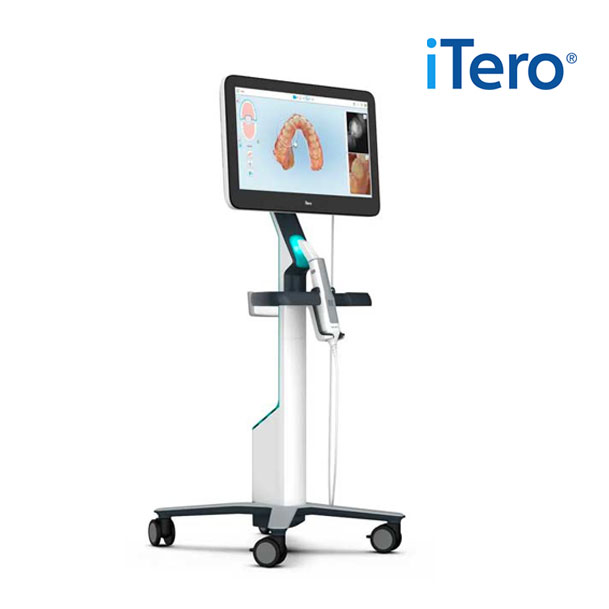
iTero Element
To connect your iTero scanner with Besto Dental Laboratory:
- Contact Align Technology directly, or contact the sales representative you purchased the scanner from, to add Bestodental to your list of “Favorite Labs.”
- Give them our details: Besto Dental Lab, [email protected].
- Under settings, select “Sync Configuration.”
- Transmit case scans and data by selecting “Send” on the screen
When sending your scans to us, follow the steps below:
- On the treatment information screen, under case type, select iRecord.
- Under Ship to select, Besto Dental Lab.
iTero Element is a product of Align Technology Inc.
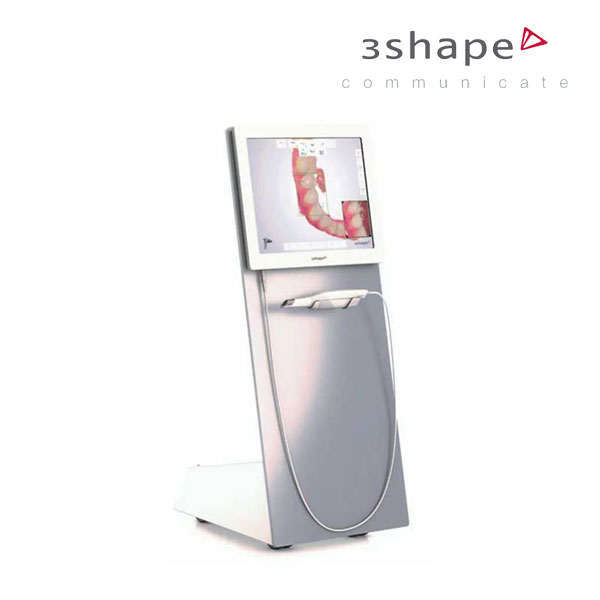
Trios 3shape Communicate
To connect your Trios 3shape scanner to Besto Dental Laboratory.
- Visit portal.3shapecommunicate.com
- Log in to your 3Shape Communicate account. If you do not have an account, please click on “create new account” link and proceed to register for one before moving to the next step
- Click Connections on the navigation bar
- Click Add Connection button
- Enter “[email protected] ” in the field. Make sure the “Show me Labs” option is ticked and then click Find
- Select “Bright Dental Laboratory” in the results. Click Connect.
- Once we approve your connection request, the status of Bright Dental Laboratory will change from “Waiting for approval” to “Active”
- Go to you TRIOS scanner, select Configure > Lab Connections. Select Communicate for External Connection Method. Click Refresh. Make sure that Bright Dental Laboratory appears in your Communicate list.
Trios is a product of 3Shape.
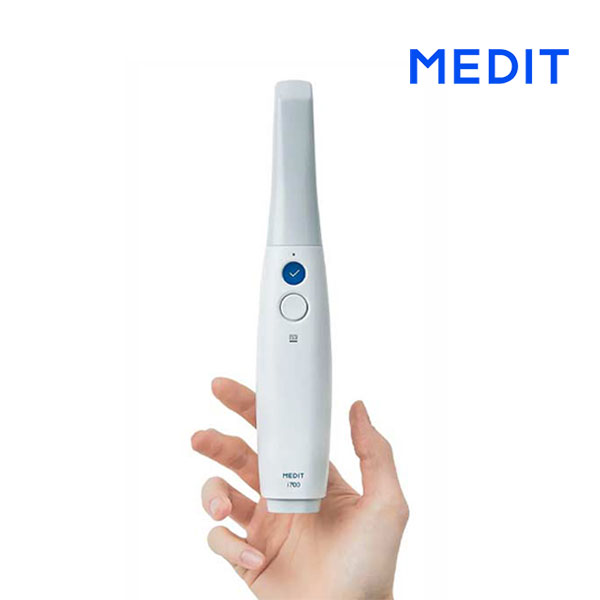
Medit Link
To connect your Medit scanner with Besto Dental Laboratory:
- Log in to your Medit Link account.
- On the left-hand side, select Partners
- In the search bar, type in [email protected].
- Then click on Request Partnership.
We will then receive a request through our Medit Link, and you will be notified by email through Medit Link once we have accepted the connection
To send a case to us via Medit Link, follow thesteps below:
- Head over to your Case Box and click on the case that you would like to make an order for
- In the Case Details page, click the Order button and fill in the Order Case form accordingly, and select Bright Dental Lab as the partner
- Click OK and head to the Order Box to check that the order has been listed.
The order will be reflected as ‘Pending’ until we accept it.
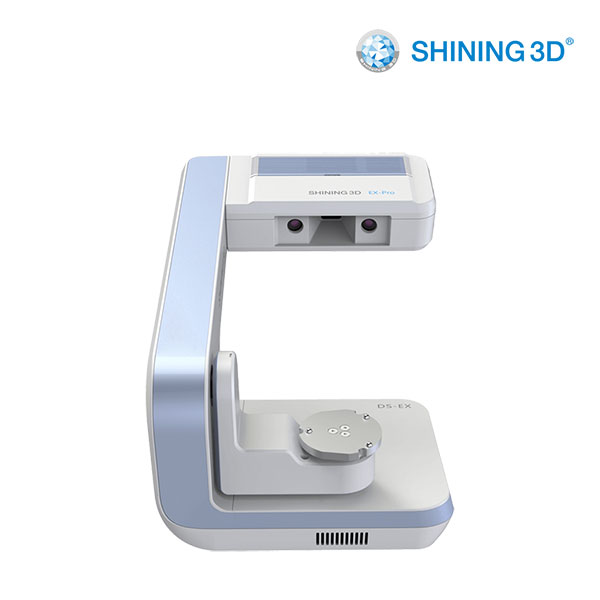
Shining 3D
1. Sign up and log in to your account at dental3dcloud.com
2. Follow the following simple video guide on how to connect your account with our lab.
3. Be sure to search our lab with this email: [email protected]
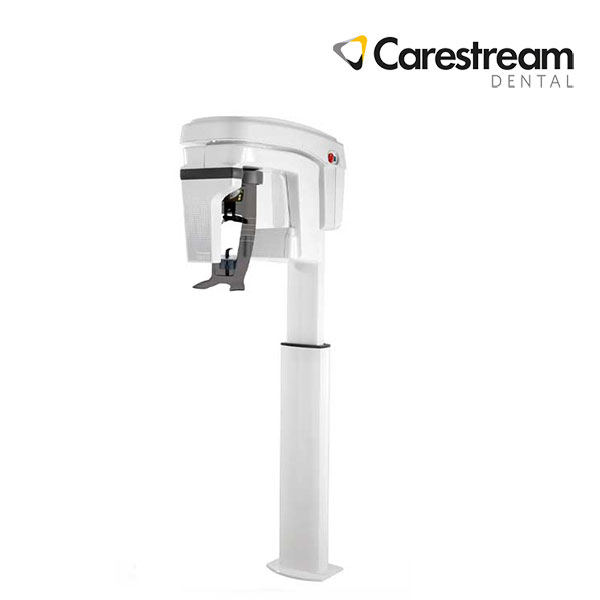
CareStream Dental
To connect your Carestream with Besto Dental Laboratory:
- Log in to CS Connect
- In the toolbar, click.
- In the Partners window, click Invite a partner.
- In the Email field, enter [email protected]
- In the Message box, either leave the default text or write your own message.
- Click Send.
- The invitation message is sent to the Laboratory, and a Partner entry is created in the list of Partners.
- Once we have accepted your request, you will be notified by email through CS Connect
To send us a case via CS Connect, follow the steps below:
- In the Case List, select a case and click.
- In the Case submission dialog box, select a Besto Dental Lab from the drop-down list.
- Click Next. The Case Specifications form appears.
- Select the required case details. (Note: The Next button in each section is greyed out until all the required details have been selected.)
- Click Nextto move through the web form.
- In the final section of the form, to specify an optional due date, click in the Due date field and then in the calendar that appears, select the required date and time (or just a date without a time). To delete a due date, click.
- Click Submit.
Important Notes
• Adding BestoDental as your lab in the scanner system does not automatically send the case.
• Please ensure the scan data or download link is successfully sent after scanning.
• A case is considered received only after we receive the STL files or a valid download link.
Send Digital Cases Via Cloud
- You may also send digital cases via cloud file transfer services such as:
• Dropbox
• Google Drive
• OneDrive
• WeTransfer - Please share the download link with us at:
[email protected] - Digital cases can also be sent directly by email if the file size allows.